
jellyfin/jellyfin-desktop
Jellyfin Desktop
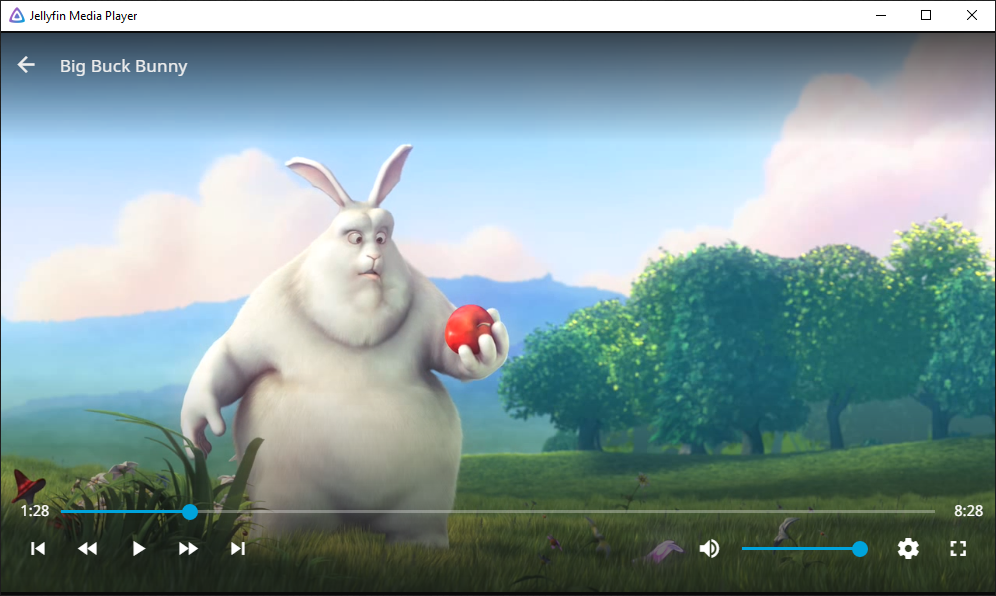
Desktop client using jellyfin-web with embedded MPV player. Supports Windows, Mac OS, and Linux. Media plays within the same window using the jellyfin-web interface unlike Jellyfin Desktop. Supports audio passthrough.
Downloads:
- Windows, Mac, and Linux Releases
- Note for Mac users: builds for Intel require macOS 12+ and Apple Silicon builds requires macOS 14+
- Flathub (Linux)
Related Documents:
- Web client: Application uses server-provided web client.
- Web client integration documentation: for-web-developers.md
- API Docs in client-api.md
- Tip: For help building, look at the GitHub Actions file!
Building at a glance (Linux)
To download the latest stable release, get the latest version tag from the latest releases page and append the following to your pull command during the build phase for JMP “–branch $VERSIONTAG –single-branch”
Example:
|
|
Ubuntu based systems
Install dependencies:
|
|
Fedora based systems
Install dependencies:
|
|
Build commands for Fedora:
Note, the only real differences here is that libraries are in diffrent directories on Fedora systems.
|
|
Building for Windows
Please install:
- cmake - cmake-3.20.0-windows-x86_64.msi
- Add cmake to the path.
- ninja
- Place this in the build directory.
- QT
- This package is huge. You also need to make a QT account…
- Check “MSVC 2019 64-bit” and “Qt WebEngine” under Qt 6.
- VS2019 Build Tools
- Again this will use a lot of disk space. The installer is small though.
- libmpv1
- Place the contents in the build directory, in a subfolder called
mpv. - Move the contents of the
includefolder to anmpvfolder inside theincludefolder. - Move the
mpv-1.dlltompv.dll.
- Place the contents in the build directory, in a subfolder called
- WIX
You need to run these commands in git bash.
|
|
Open the “x86_x64 Cross Tools Command Prompt for VS 2019”. cd to the build directory. Run:
|
|
Building for MacOS
Install Qt 6, remember to check Qt WebEngine.
Then run the following commands (replace <QT_DIR> with your QT installation location):
|
|
Log File Location
- Windows:
%LOCALAPPDATA%\Jellyfin Desktop\logs - Linux:
~/.local/share/jellyfin-desktop/logs/ - Linux (Flatpak):
~/.var/app/org.jellyfin.JellyfinDesktop/data/jellyfin-desktop/logs/ - macOS:
~/Library/Logs/Jellyfin Desktop/
Config File Location
The main configuration file is called jellyfin-desktop.conf. You can also add a mpv.conf to configure MPV directly.
- Windows:
%LOCALAPPDATA%\Jellyfin Desktop\ - Linux:
~/.local/share/jellyfin-desktop/ - Linux (Flatpak):
~/.var/app/org.jellyfin.JellyfinDesktop/data/jellyfin-desktop/ - macOS:
~/Library/Application Support/Jellyfin Desktop/
Web Debugger
To get browser devtools, use remote debugging.
- Run the application with the command argument
--remote-debugging-port=9222. - Open Chromium or Google Chrome.
- Navigate to
chrome://inspect/#devices. - You can now access the developer tools.
If you have problems:
- Make sure “Discover Network Targets” is checked.
- Make sure
localhost:9222is in the list under “Configure…”. - Make sure
--remote-debugging-port=9222is specified correctly.
License
Jellyfin Desktop is licensed under GPL v2. See the LICENSE file.
Licenses of dependencies are summarized under resources/misc/licenses.txt.
This file can also be printed at runtime when using the --licenses option.
Known Issues
If you build MPV from source, you currently need to disable pipewire or else the client will segfault.